Hey guys! I just wanted to give you a quick heads up, a game I worked on just got released in the app store and if you have an iPad 2 or mini you should totally check it out! [Link]
The developer put a ton of effort in to working on this and it's a crazy high quality game, and I spent the past few months doing texture work on it. You can check out the trailer below to see it in action! :D
So yeah, if you or anyone you know wants to have some high-speed fun for just a couple bucks be sure to check it out, you won't be disappointed! :B

Showing posts with label textures. Show all posts
Showing posts with label textures. Show all posts
Tuesday, August 20, 2013

Tuesday, October 11, 2011
I'm on a rampage
Arts!!! Here's some more stuff that I've been working on, not as much as last post but I spent a lot of this week working on presentation stuff so there were less draws.


Aaaand that's all folks!
Thursday, September 29, 2011
Spheres, Weapons, Vehicles and Rocks
And the day after I whine about having nothing to post and renounce my updating daily status, I have 5 things to post. Ah well, such is the way of life. But it's cool, I think I like these less-frequent-with-more-images post... plus I can update during the day instead of at 2 in the morning. But anyways, art!
 These are some sphere exercises we've been doing in entertainment design class, just doing surface studies of different materials and trying to capture their effects accurately. It's ridiculous amounts of fun, and super educational. Really gets you thinking about what you're seeing and why.

 Thiiiiiiiis one is my final weapon for Industrial Design class, I took the model I made in sketchup, took a quick screencap, and just painted over it. Overall I think it turned out pretty cool, I'm pretty happy with the design and rendering, just gotta keep pushing my ideas more so I can make stuff that's actually interesting and doesn't just look cool.
 This puppy's a speedpaint exercise we did in Industrial Design yesterday, our instructor gave us a song [Link] and told us to design and paint a vehicle in 1 hour based on how the song made us feel. I thought it gave a pretty epic sort of, "I'm gonna roll around and pummel you all in slow-motion while roaring in a masculine way." so I went for a dune buggy with a big ol' minigun. Was good practice for sure, might make this a regular practice whenever I have a spare hour.

And lastly here's a Bill Cone study and re-light I did this morning as a warmup, they're about 15 minutes each, the one on the left is a study of the original, the one on the right is a re-light from imagination. Lots of fun, and great color practice.
And that's it, yo! Have fun


And lastly here's a Bill Cone study and re-light I did this morning as a warmup, they're about 15 minutes each, the one on the left is a study of the original, the one on the right is a re-light from imagination. Lots of fun, and great color practice.
And that's it, yo! Have fun
Wednesday, February 23, 2011
Painter Paper Textures Pt. 2
In this section I'm gonna talk about creating custom paper textures in Painter. This is obviously useful in the sense that you can get exactly the texture you need in your piece, designing it to fit the way you intend to use it. You can then use painter's brushes to paint multiple custom textures over top of each other to create a huge variety of unique textures.
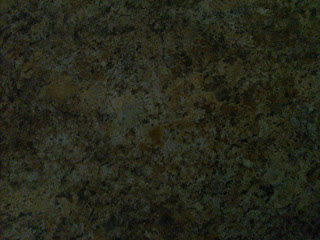
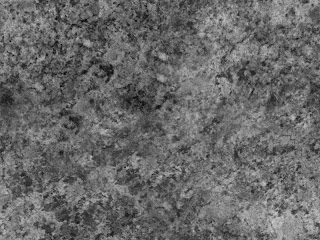
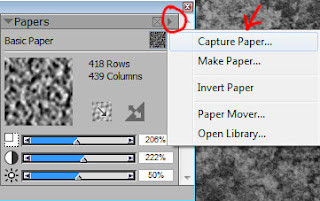
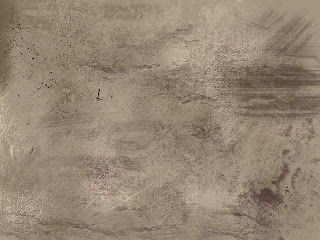
To start off with, you'll need some images to work from, so bust out your trusty camera and go texture hunting! You don't need a super expensive ultra high-res camera to get good textures, you just need something that can get an image about 1000 pixels wide with relatively little noise. When looking for things to photograph, the main thing is to obviously look for an interesting texture, but more specifically look for things with a good amount of contrast between the lights and darks, have some amount of repetition, and would be fairly easy to tile (that is, make the edges blend seamlessly in to each other). Also try to take your photographs from as straight-on as possible so your texture doesn't have perspective, or it might look wonky in your piece.
If you don't have any kind of camera, you can still get textures online and use them; this will work just as well, but they may require credit to use. The disadvantage of getting textures online is you'll probably only search for things you expect to use, going on a little texture-hunt with your camera will show you lots of interesting possibilities that you wouldn't have thought of that will ultimately add more fuel to your creative fire.
Here's an example of a texture I shot, the image is straight out of the camera. It's a little low contrast, but that will be edited later. The important thing is that it has an interesting balance of light & dark shapes that will make for an interesting texture. Try and get at least 10 different textures with a good amount of variety.
Now we've got to turn it in to something you can use. It's best to not use an image straight out of the camera, so let's start with some editing. This is where Photoshop will have an advantage over Painter. If you have Photoshop (Elements will do), you will want to start by tiling your texture, check out this tutorial for info on how that's done: [Link].
You will then want to turn your texture black and white, then increase its contrast so that it has a clear division between lights, midtones, and darks. In Photoshop, you can do this with Image-> Adjustments-> Hue/Saturation, and Levels (Ctrl+L). In painter, you can use Effects-> Tonal Control-> Adjust Colors and Effects-> Tonal Control-> Brightness/Contrast. I can explain that more thoroughly another time, but it should be simple enough that you can figure it out.
After editing, your texture should look something like this, so just resize it to something around 1,000 or 1,200 pixels and save it to your textures folder!
Now to get it so we can use it in Painter is relatively simple. Simply open your Papers palette (Window-> Library Palettes-> Papers). Now open up your texture and press Ctrl+A to select the entire image. Then click the arrow in the top right corner of your Papers palette, then click Capture Paper. Now just type in a name for your paper and click ok!
The paper should then appear in your Papers palette, and you can use the options shown in Part One to edit your texture while working and get all kinds of variety. So just create a nice library of different textures, grab your Large Chalk brush (Or whatever textury brush has captured your imagination) and start painting!
Below is an example of my paper library put in to action. Compare it to the final texture image in part one and you'll see why you want to make your own paper textures!
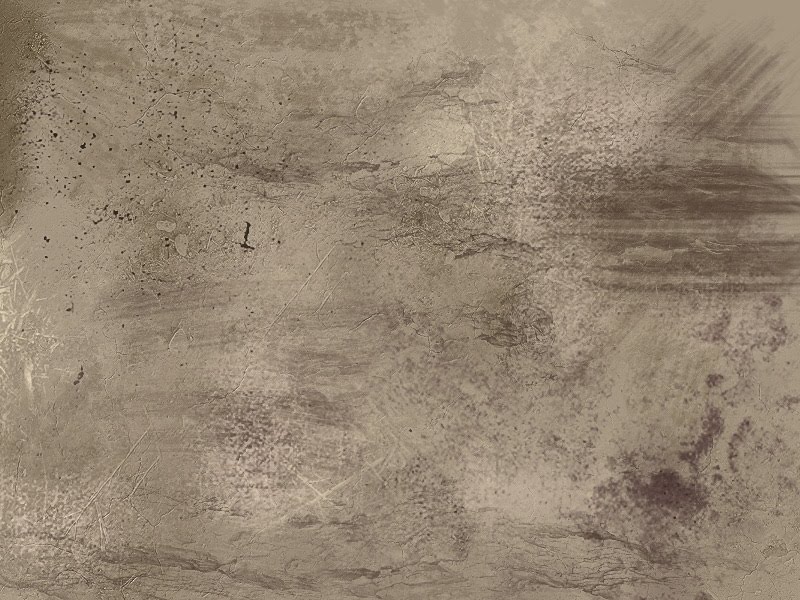
And that's it! Tomorrow will be covering how to make some custom brushes that will really take advantage of these textures. Happy painting!
Painter Paper Textures Pt. 1
Here's part one of five in a series of getting natural looking brushwork using Corel Painter. Though a lot of these rely on tools that are exclusive to Painter, the same concepts can be applied to Photoshop if you do a little research and experimenting.
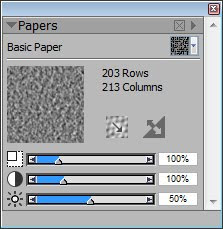

The first thing we'll cover is Paper textures. This is one of the features that really makes Painter shine, as it's a very dynamic and versatile way to add texture to something. It's strength lies in the fact that the paper texture is universal; unlike Photoshop where you will need to enable texture on brushes you want to use and then select the texture, paper textures in Painter will apply to all brushes that are set to one of the Grainy Cover modes, which I will explain more in-depth later on. The advantage of this is that you only need one type of texture brush and you can apply all kinds of different textures to it that you can edit on the fly, reducing the number of tools you need and saving time switching between different textures.
To start, click on Window -> Library Palettes -> Papers to open the Papers window. It should look something like this:
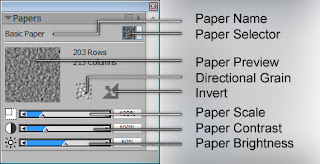
Using the options in the diagram above, you can edit your texture to get more variety and interest.
Paper Name - The name of the paper currently selected
Paper Selector - Click here to select different papers
Paper Preview - An image showing what the current paper looks like
Directional Grain - Changes how the paper reacts based on direction
Invert - Reverses the values of the texture, making white black and black white
Paper Scale - The size of the paper texture
Paper Contrast - How far apart the lightest and darkest values of the texture are
The important thing to remember with textures is this: The black parts of the texture will be painted with full opacity (or at the highest opacity of your brush), grays will paint at a medium opacity, and whites will not be painted at all. With this in mind, it's easy to get a variety of textures. Need an area to have more focused areas of texture that's not as thick? Just increase the brightness and contrast so there's less black and more white, therefore less texture and more empty space. Need to paint some additional texture without painting over the texture that's already there? Increase the scale of the texture so it's painting over a different set of pixels and will leave existing texture intact. Want to paint some more 3D looking texture? Paint in your darks, then Invert it and paint your lights on top. Experiment with these options to figure out how you can use them in your work.
Now you have a texture, but how do you use it? This will require some experimentation, a number of Painter's brushes will apply paper textures to them and will be useful for painting. I would recommend starting with the Large Chalk brush in the Chalk category. Using just the Large Chalk and Painter's default papers, you can get a whole variety of texture that will be useful for all kinds of things:
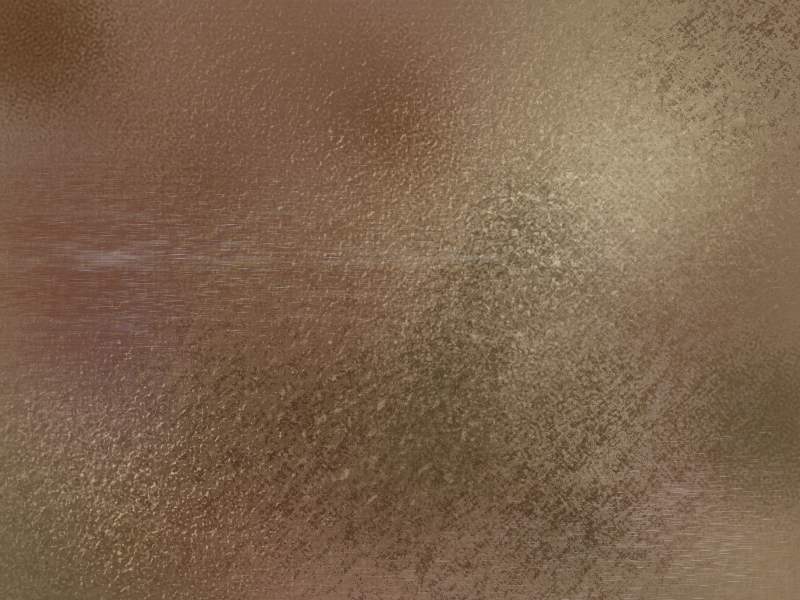
The textures above, though in need of more adjustment and subtlety, are reminiscent of traditional underpaintings This would be a great way to fill in a background with a nice textured tone and then paint your piece over top of it, leaving some showing through for interest. It's also handy simply for texturing; you could easily add some texture to a stone wall to make it pop and feel more real.
I'll cover making your own custom papers as well, but this is getting a little long already so that will be posted tomorrow, followed by how to make custom brushes that will really take advantage of these textures.
Hope you found this helpful! Have a good one!
Subscribe to:
Posts (Atom)